Labda tupate jibu huo mtambo wa kamera maana yake ni hiyo ftp server au la kabla ya kudhani hawajui hiyo technolojia ... ama?
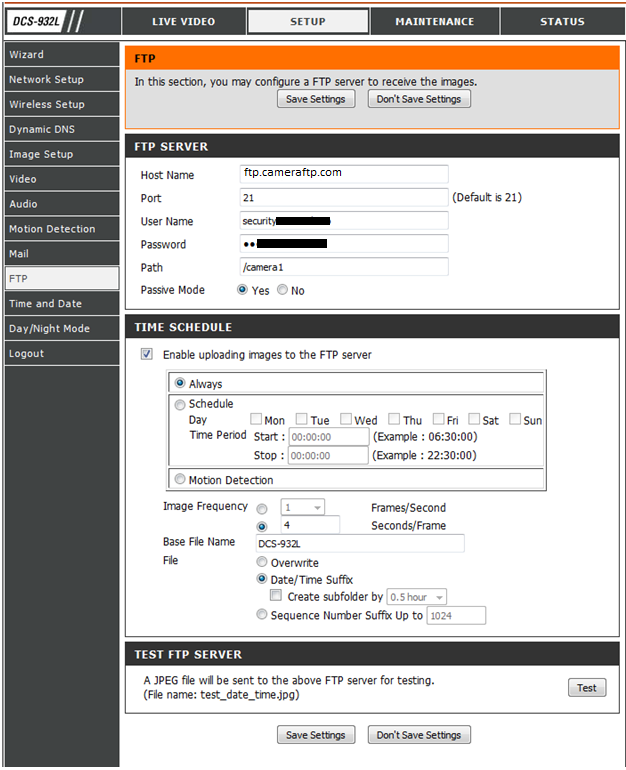
Inawezekana wanajua hiyo teknolojia. Lakini hapa kwa wanaohitaji kuweka security camera kwa ajili ya kupata picha hata wakiwa hawapo eneo la tukio, au baada ya tukio kutokea wana na namna ya kuunganisha camera zao na server. Hii inawezesha camera ipeleke kwenye server picha zote mara moja na mtu anaweza ku monitor hata akiwa mbali kwa kuingia kwenye internet na kuingia kwenye website ya server kuingiza username na password.
Server hiyo mara zote inakuwa off-site server. Ni kama server inayotunza kumbukumbu zako za kwenye akaunti yako ya yahoo.com au ya facebook. Yaani haiwi kwenye jengo hilo, hivyo wezi au moto, haufuti picha zilizorekodiwa.
Nakubandikia hapa maelezo ya jinsi ya kuiunganisha camera kwenye server
Introduction
If you've got a new security camera, or multiple security cameras that you want to set up around your home or business, remember, you need Camera FTP Service, powered by DriveHQ!
Why Camera FTP? Because:
(1) Security cameras are not secure themselves. They can be easily stolen or destroyed. For example, a burglar may break into your store and steal valuable goods. After that, he may set a fire. Your security cameras and all the recorded images and videos will be burned.
Using Camera FTP service, your cameras can automatically upload recorded images to our FTP server, which is hosted in a secure and remote location. A burglar can destroy the cameras, but he can never delete the recorded images!
(2) You can play back recorded images remotely. If you need to take a long trip, you can find things happened to your home or business remotely
(3) Real-time monitoring Because the cost of setting up your own FTP server can add up, and not only that, but if your images are stored on a machine at your home or business, they really aren't secure in the event of a burglary or disaster. And they surely won't be protected behind a reliable state of the art network and 24/7 security.
Getting Started
If you haven't already done so, you'll need to sign up for a CameraFT.com account. Go to
www.CameraFTP.com and click on "Sign Up FREE!". We highly recommend you read our
getting started guide and familiarize yourself with the service before continuing.
Security camera connections induce heavier loads on a server than regular file transfers. Because security cameras record images very frequently, they must also connect to the server very frequently. In order to use CameraFTP.com for your security cameras, you will need to become a paid member. Plans start as low as $2.99 a month. Check out our service pricing
here and please order before proceeding.
Enabling Security Camera Features
Before you can configure your security camera to send images up to CameraFTP.com, you need to enable a couple features in your CameraFTP.com account.
Step 1: Logon to CameraFTP.com.com and go to My Storage
Step 2: Click on
Option →
Folder Options.
Step 3: Check the last option
This account will only be used by a security camera. This will do two things. 1) A new
Camera Show button will display in the My Storage toolbar area. Clicking on it will open CameraFTP.com's image player that will playback your captured images. 2) As your images are sent up to CameraFTP.com, sets of them will be packaged into a single zip file. They are packaged this way to provide a more efficient and optimized transfer.
Step 4 (recommended): If you plan on setting your cameras to send images to CameraFTP.com very frequently, you may find that your storage space consumed rapidly. To combat this issue, you can either order more storage space or enable the
Automatic File Deletion feature. The Automatic File Deletion feature will delete files older than the specified time you choose. The time is based on when the file was uploaded or last changed, whichever is most recent.
Be careful however - all files in your account are subject to this setting, not just the ones sent by security cameras.
Configuring your Security Camera
The configuration interface for your camera will differ slightly from our example below, but the basic inputs are the same for every camera. We recommend following the instructions included with your camera and using our instructions below as guidelines.
· In your camera setup page, find the section for FTP setup. The camera will require information about your FTP server including:
o
Host name: connect to CameraFTP.com's special FTP server
cameraftp.drivehq.com. Some cameras may only accept an IP address; if so, plug in
66.220.9.45. The
port number is always
21.
o Your username and password are the same ones you use to logon to DriveHQ.
o The folder directory should be the name of the folder you want the images uploaded into. For example, if you have a folder inside My Storage called "Front Door", then you should type "Front Door" in this field. You may have to type in a forward slash "/" first, i.e. "/front door" (follow the instructions included with your camera).
If the folder doesn't already exist in your DriveHQ account at the time of this configuration, it will be automatically created by the camera before the first image is uploaded.
o Connection frequency – you must ensure that the camera connects to the FTP server
no more than once every five seconds. Going over this frequency may be considered as abuse of the service; if you require higher connection frequency, please contact DriveHQ's sales team first.
Natumaini nimeeleweka.
Benki na ofisi/kampuni nyingine zinazohitaji usalama wa hali ya juu, daima hutumia camera hizi zinayorusha picha zake kwenye server moja kwa moja .
Hiyo niliyoweka ni kampuni moja tu, lakini ziko nyingi na server za aina mbali mbali.
Soma zaidi
CameraFTP.com - Offsite storage for security camera, web camera, IP camera and FTP surveillance camera