Zorin os 7 yanitoa kijasho.

Zorin os 7 yanitoa kijasho.

Jaguar

JF-Expert Member
Joined
Mar 6, 2011
Posts
3,440
Reaction score
1,029
Bado sijajua jinsi ya ku-set modem iwe katika WCDMA only.Nilipokuwa na window 7,nilikuwa naenda options>>network>>halafu nina-select kati ya WCDMA only,WCDMA preffered,GSM only na GSM preffered.Sasa huku kwenye zorin os sijui nifanyeje ukizingatia ile dashboard ya modem yangu ya Voda haitaki kufanya kazi katika Zorin os.Msaada please.
 
Msaada tafadhali@Mzizimkavu uko wapi?najua unatumia hii kitu.
 
Bado sijajua jinsi ya ku-set modem iwe katika WCDMA only.Nilipokuwa na window 7,nilikuwa naenda options>>network>>halafu nina-select kati ya WCDMA only,WCDMA preffered,GSM only na GSM preffered.Sasa huku kwenye zorin os sijui nifanyeje ukizingatia ile dashboard ya modem yangu ya Voda haitaki kufanya kazi katika Zorin os.Msaada please.

Msaada tafadhali@Mzizimkavu uko wapi?najua unatumia hii kitu.
Tumia njia hii hapa
[h=1]How do I get a Zte wcdma modem working?[/h]

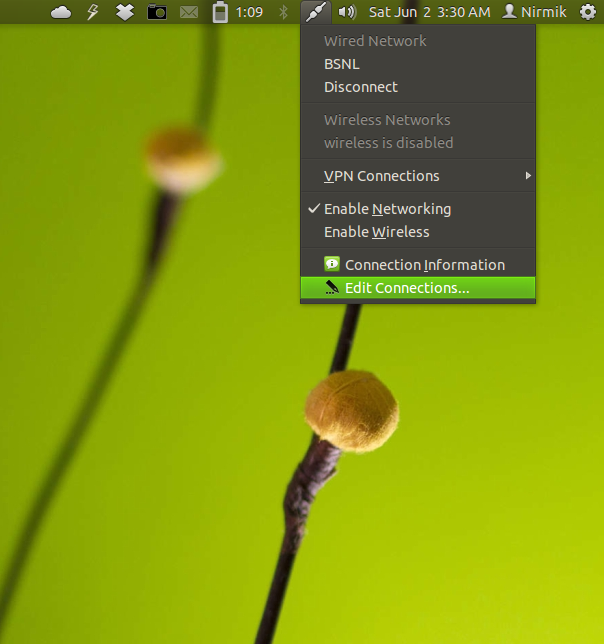
  • Click on the Network Connections indicator on the pannel and select Edit Connections-
JJigR.png


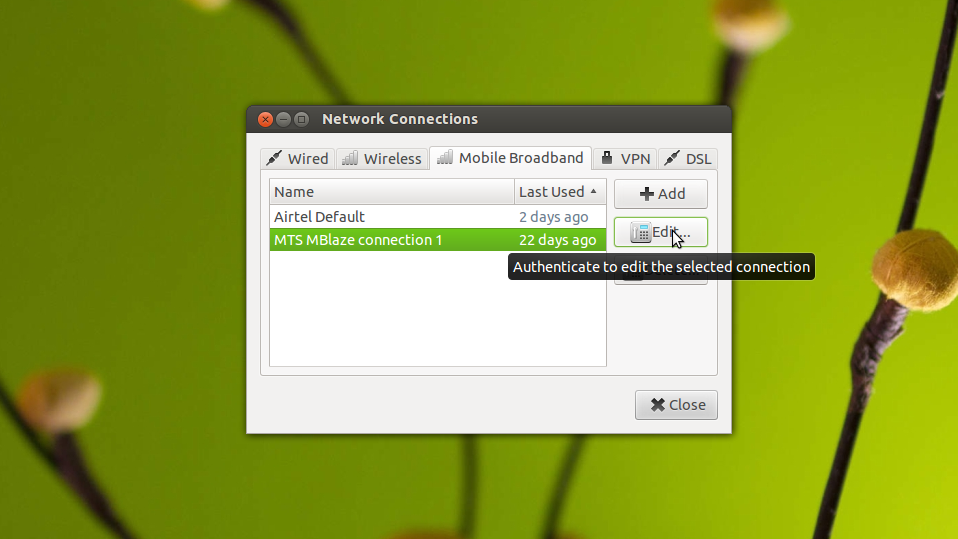
  • Then select the Mobile Broadband tab and select the connection and then click on Edit.
JHUuf.png


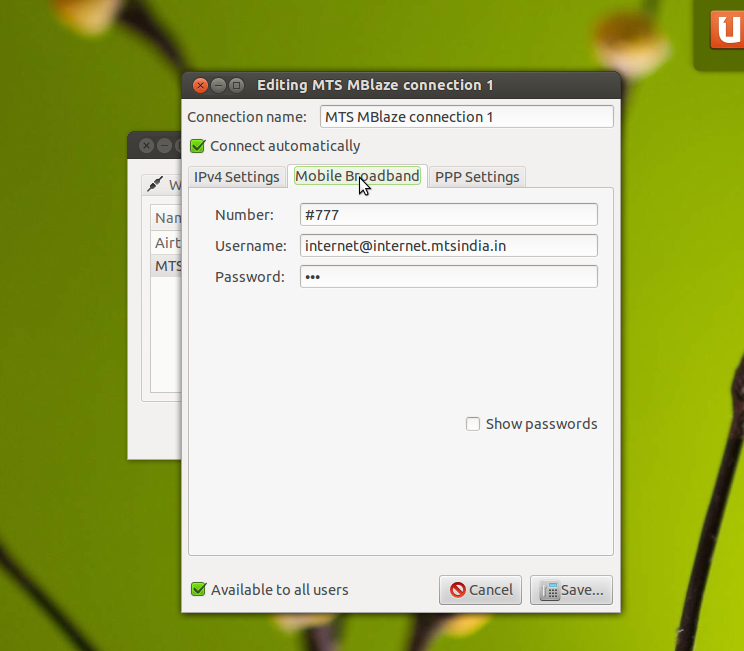
  • Then again in the connection,Under the Mobile Broadband tab,enter the details-
h8aFH.png


  • After that,Save and exit.
 
[h=1]Vodafone 3G (UMTS) Linux HowTo[/h]
This HOWTO explains how to make a Vodafone UMTS/GPRS datacard work on a Linux Laptop. Everything you need to make it work has been grouped in this HOWTO. No need anymore to search the Internet for hours to get all the relevant information. Everything can be found here. All the commands and configuration settings hereafter are intended for my preferred ditribution: Fedora (Core) but I'm confident that they will be useable in other distributions as well.

Regular use - Connecting:
Before we dive into the configuration details, I want to show you how easy it is with Linux to connect to the Internet using an UMTS or GPRS mobile network. Only two (2) simple steps are required:

  1. Launch the setpin.pl script (./setpin.pl) that you can download from this page.
  2. Start KPPP and click Connect.
Remark 1: Don't forget to disable all other network interfaces or you will have routing problems.
Remark 2: Insert your Vodafone 3G card after you booted your system.

The command output and the next five screenshots will give you the full details:
Send the PIN to the Vodafone 3G card with the command:
# ./setpin.plIf the PIN is correct, you will get:
# ./setpin.pl
PIN accepted
#Next, start KPPP (Applications -> Internet -> KPPP).

KPPP_main_Proximus.png
On the KPPP main window choose your provider, when needed (not required for Proximus) provide a Login ID and a Password, and click on the connect button. The Connecting window pops up giving you the connection progress

KPPP_Connecting_to_Proximus.png
followed by the Logon Script Debug window and

KPPP_Connecting_Login_Script_Window.png
the Logon Terminal window. Click on the Continue button to make the connection.

KPPP_Connecting_Login_Terminal_Window.png
Done, you are now conneted to Proximus.

KPPP_Connected_to_Proximus.png
You can now start your favorite browser and e-mail client.

When you want to stop click on the disconnect button.
Before you remove the Vodphone 3G card from its PCMCIA-slot, execute the next command to release it:
# pccardctl ejectWhen all the leds are off, you can remove the card.


Configuration details:
As Vodafone ships two (2) versions of 3G datacards under the same product name of Vodafone 3G, we need to find out which type you have so that it can be configured correctly.
Vodafone 3G card type?
After booting Linux, plug your Vodafone 3G card into a free PCMCIA slot, start as root a Terminal session (Applications -> Accessories -> Terminal) and execute the following command:
# tail -20 /var/log/messagesDepending on your Vodafone 3G card type, the output should be similar to one of the outputs below:
# Vodafone 3G recognized as USB device
...
USB device 3 (vend/prod 0xaf0/0x5000) is not claimed by any active driver
...
# Vodafone 3G recognized as PCI device
...
Jan 22 20:12:24 Dell600 kernel: pccard: CardBus card inserted into slot 0
...Check the lspci output, to see if the Vodafone 3G card is recognized as a PCI device. Type the command:
# lspciYou should see a new Network controller line, similar to the one below:
# lspci output
...
03:00.0 Network controller: Option N.V. Qualcomm MSM6275 UMTS Chip
...If you want more information about the Vodafone 3G card, execute the lspci -n command. With 03:00.0 from the previous command as reference, you find the Vendor ID 1931 and the Product Code 000c. The command lspci -v will return, among other things, the IRQ used as well as the reserved memory range.
Setting up the hardware:
Next you need to install the hardware driver. Download the latest nozomi driver from www.pharscape.org or click here to download the 2.21-alfa version.
Remark 1: don't forget to register at PHARscape | Home or you will not see the download link.
Remark 2: version 2.2 will work on Fedora Core 5 but will return errors in more recent Fedora's. Therefor use version 2.21alpha.
Remark 3: you will have to compile (make and make install) the nozomi driver each time you install a new kernel.
Extract the package, when you saved it on the Desktop, by right clicking on it and choosing "Extract here" or by executing the command:
# tar zxvf nozomi_2.21alpha_060917.tar.gzIn the Terminal window, change into the nozomi directory with the command:
# cd nozomi_2.21alpha_060917For Fedora 7 kernel 2.6.21-1.3194.fc7 and Fedora Core 6 kernel 2.6.20-1.2925.fc6 up to 2.6.20-1.2948.fc6 you need to apply a small fix to the nozomi.c file:
In line 1736 replace
INIT_WORK(&dc->tty_flip_wq_struct, tty_flip_queue_function, dc);
with
INIT_WORK(&dc->tty_flip_wq_struct, tty_flip_queue_function);Build the driver with the command:
# makeThe make script of version 2.21-alfa is able to install the kernel module in the /lib/modules/`uname -r`/kernel/drivers/pci/hotplug directory and to load it with the 'modprobe' command. `uname -r` will be replaced with your kernel version e.g. 2.6.21-1.3194.fc7. Launch the command:
# make installShould the make install return errors, copy the nozomi.ko file to the /lib/modules/`uname -r`/kernel/drivers/pci/hotplug directory with the command:
# cp nozomi.ko /lib/modules/`uname -r`/kernel/drivers/pci/hotplug/and then, load the nozomi.ko driver with the command:
# modprobe nozomiCheck that the nozomi driver was loaded correctly with the command:
# lsmod | grep nozomiAfter the module has been loaded, there should be four (4) new devices called noz0 to noz3 in the /dev directory. Check this whith the command:
# ls -l /dev/noz?You should see an output similar to the one below:
# ls -l /dev/noz?
crw-rw---- 1 root root 241, 0 Jan 18 17:47 /dev/noz0
crw------- 1 root root 241, 1 Jan 18 17:45 /dev/noz1
crw-rw---- 1 root root 241, 2 Jan 18 17:45 /dev/noz2
crw------- 1 root root 241, 3 Jan 18 17:45 /dev/noz3
#The hardware setup is now finished. Before you setup the Point-to-Point connection for your service (operator), you'll need to set the PIN and test the hardware.
Setting the PIN:
To set the PIN, you can use a terminal program like minicom or use the Perl script setpin.pl. Download the script or copy the text below and copy it into a file named setpin.pl.
Remark: setpin.pl is a Perl script and therefor requires the Perl interpreter. Install it when needed.

Don't forget to change the value "1234" in my $pin = "1234"; to your PIN.
#!/usr/bin/env perl

use strict;
use
warnings;

my $modem = "/dev/noz0";

# Substitute 1234 with your PIN.
# You should probably put your pin somewhere else, e.g. on an USB stick,
# an encrypted file system or something else, and read it from there...
# You have been warned!

my $pin = "1234";

$SIG{ALRM} = sub {
die(
"timeout: no response from modem $modem\n");
};


open(MODEM, "+<", $modem) or die("can't open modem $modem");
alarm(10);

print(
MODEM "AT+CPIN=\"$pin\"\n\r");
while (<
MODEM>) {
if (
m/OK/) {
close(MODEM);
print(
"PIN accepted\n");
exit(
0);
}
if (
m/ERROR/) {
close(MODEM);
print(
"PIN rejected\n");
exit(
1);
}
}

Make the script executable with the command:
# chmod a+x setpin.plSend the PIN to the Vodafone 3G card with the command:
# ./setpin.plIf the PIN is correct, you will get:
# ./setpin.pl
PIN accepted
#Testing the hardware:
You will test the hardware with the program KPPP. As kppp does not recognize /dev/noz0, you need to create a symbolic link to the/dev/noz0 device. Execute the command:
# ln -s /dev/noz0 /dev/modemUnfortunately, does this symbolic link disappear when you remove the Vodafone 3G card or when you reboot the system, so you should write a script which checks that and creates the link automatically.
Users running Linux with Kernel-2.6.xx can download the file 52-3g-datacards.rules or copy the text below and paste it into the file. Put the 52-3g-datacards.rules file into the directory /etc/udev/rules.d/ and the symbolic link will be automatically created when you insert your Vodafone 3G card. The file is valid for both types of Vodafone 3G cards.
# Rules for hotplugging Cardbus 3G datacards
KERNEL=="noz0", SYMLINK="modem", RUN="/bin/sh /etc/dev.d/noz0/nozomi.dev hotplug", GROUP="dialout" MODE="0660"
KERNEL=="noz2", GROUP="dialout" MODE="0660"
KERNEL=="ttyUSB0", SYMLINK="modem", GROUP="dialout" MODE="0660"
KERNEL=="ttyUSB2", GROUP="dialout" MODE="0660"
Remark: Don't remove the PCMCIA card when it has not been released yet or you will damage your PCMCIA card slot of the Laptop. Release how to.
Start KPPP (Applications -> Internet -> KPPP).
Remark: The KPPP config file can be found in $HOME/.kde/share/config/kppprc.

KPPP_main_empty.png
Click on the Configure button to see the next screen.

KPPP_configuration_accounts_empty.png
Click on the Modems tab to see the next screen.

KPPP_configuration_modems_empty.png
Click on the New button to see the next screen. Set the Modem name to "Vodafone 3G", the Modem device to "/dev/modem" - the symbolic link you created earlier - , the Flow control to "Hardware [CRTSCTS]", the Line termination to "CR" and the Connection speed to "460800".

KPPP_new_Vodafone_3G_modem.png
Click on the Modem tab to see the next screen.

KPPP_modem_settings.png
Click on the Modem Commands button and configure the settings as shown in the next screen.
Remark: These settings set the APN for Proximus to "internet.proximus.be". APNs of other providers can be found in Appendix B.

KPPP_modem_commands.png
Click on the OK button to return to the New modem window. Then click on the Terminal button to make the Mini-Terminal window appear.
As soon as the Vodafone 3G card is initialized, you will see ATZ followed by the OK prompt.
If ATZ does not show up but the OK does, then you forgot to enter or you made a mistake in the initialization string 2 that defines the providers APN. Check this and correct it before you go to the next step.
Feel free to type a few commands like ati, at+cops? and at+csq but don't try to dial in with the command atdt*99# because it's difficult to terminate the connection with this terminal program. More modem AT-commands can be found in Appendix A.

KPPP_mini-Terminal.png
Congratulation you just tested successfully your Vodafone 3G card.
Don't open your favarite browser yet, there are still a few things to configure before it will work.
Finalizing the configuration:
Click File -> Close to close the KPPP Mini-Terminal window. Continue by clicking OK in the Edit Modem window to return to the KPPP Configuration window.
Next you will configure the provider settings. Click on the Accounts tab and then on the New button to see a popup appear.

KPPP_Create_New_Account.png
Click on the Manual Setup button to see the New Account screen.

KPPP_New_Account.png
Set the Connection name to "Proximus", the Authentication to "Terminal-based", uncheck the Store password checkbox and put the Callback type to "none". Settings for other providers can be found in Appendix B
Click on the Add button to add a new phone number. The next screen will be displayed.

KPPP_new_Phone_number.png
Enter *99# as new phone number and click OK.

KPPP_new_Proximus_account.png
Click the Customize pppd Arguments button. Type novj and click the Add button. Repeat the previous action with noauth. You should get the same as the screen below.

KPPP_pppd_Arguments_add.png
Click the OK button to return to the New Accounts - KPPP window.
To finalize the configuration, check the settings of the next 6 tabs. For most providers, the default values are just fine. Hereunder a screenshot of all of them.

KPPP_New_Account_IP.png
KPPP_New_Account_gateway.png

KPPP_New_Account_dns.png
KPPP_New_Account_login.png

KPPP_New_Account_execute.png
KPPP_New_Account_accounting.png

The configuration is now finalized. Click the OK button to return to the KPPP main configuration window.

KPPP_Configuration_Proximus.png
And finally, click the OK button to return to the KPPP main window.

KPPP_main_Proximus.png
From now on, you can use the two (2) step procedure at the top of this page to setup the connection.


Appendix A: Usefull modem (AT) commands:
To find out the manufacturer, type ati and hit enter.
The at+cops? tells you to which provider (Proximus) you are hooked on and to what network type (last digit: 2 = UMTS, 0 = GPRS).
To find out the signal strength, type at+csq. The first value will be between 5 and 22. For reliable connections it should be at least 12. We have 5.
You can set the PIN manually with the command at+cpin="1234". Don't forget to replace "1234" with your PIN and don't send more that twice a wrong PIN to your 3G card or the SIM will be blocked. You can unblock the SIM with the command at+cpin="12345678","5678". Where "12345678" is your PUK and "5678" is the choozen new PIN.
To set your preferred network preferences, use the command at_opsys=3,2. This will set UMTS as the preferred network, 0,2 force to connect to a GPRS network only, 1,2 UMTS only and 2,2 preferred GPRS.
The command at&v gives a listing of all currently active settings. The command at+clac lists all available AT-commands.

Appendix B: Other providers settings:
CountryProviderAPNAuthenticationPhone numberLogon IDPassword
AustriaA1at+cgdcont=1,"IP","a1.net"PAP/CHAP*99***1#ppp@A1net.atppp
BelgiumMobistarat+cgdcont=1,"IP","web.pro.be"Terminal based*99#mobistarmobistar
BelgiumBASE (Orange)at+cgdcont=1,"IP","busint.base.be"Terminal based*99#BusinessInternetbusint
BelgiumProximusat+cgdcont=1,"IP","internet.proximus.be"Terminal based*99#nonenone
FranceOrangeat+cgdcont=1,"IP","orange.fr"Terminal based*99***1#orangeorange
GermanyD2 Vodafoneat+cgdcont=1,"IP","web.vodafone.de"PAP/CHAP*99***1#nonenone
NetherlandsKPNat+cgdcont=1,"IP","internet"Terminal based*99***1#Internetnone
NetherlandsOrangeat+cgdcont=1,"IP","internet","",0,0Terminal based*99***1#nonenone
NetherlandsVodafoneat+cgdcont=1,"IP","web.vodafone.nl"Terminal based*99#vodafonevodafone
A more complete list of APNs can be found at www.reqwireless.com.

This How To was made with information from the following websites:

 
bro, mimi natumia zorin os 7 na mwanzoni nilianza kuhangaika nijue ile dashboard ya modem yangu itatokea vipi. Ila hauhitaji kuiinstall hiyo dashboard coz naona hawa jamaa wa zorin wamesharahisisha vitu vingi tofauti na distros zingine za linux.
1.Chomeka modem yako...
2.Ukiwa kwenye home screen, Right-click sehemu ya network(ina icon kama ya cable mbili ambazo hazijaunganishwa). Ipo chini upande wa kulia.
3. Utaona sehemu imeandikwa "enable mobile broadband"
4. Utaifungua hiyo na utafuata maelekezo. Ila kwenye sehemu ya apn uandike "internet".
Ukishaweka settings zote vizuri, restart comp yako.
5. Alafu right-click pale pale kwenye hiyo icon ya cable mbili zilizoachiana. Utabonyeza "enable mobile broadband" na itaconnect yenyewe.
So hauhitaji kutumia dashboard ya modem yako kwa zorin, ila kama utataka kuiona hiyo dashboard, basi fuata maelekezo ya hao wakuu hapo juu.
 
Mkuu Bingley na MziziMkavu Nadhani swali la mleta mada ni je ukisha kuwa connected tayari atawezaje kuselect WCDMA only au WCDMA preferred, GSM only au GSM preferred?
Maana ukiacha hivi hivi by default itakuwa inaselect automatic signal ambazo zipo strong, na kama ni EDGE ipo strong kuliko WCDMA inabidi uiforce kuselect WCDMA hata kama signal zipo weak kidogo
 
Last edited by a moderator:
Thanks nyote kwa msaada wenu,kuhusu matumizi ya modem sasa hayanipi shida kabisa,I'm enjoying it ila ni kwamba hii os iko so much limited kwa uchache na ubora wa application zake mpaka imenibidi kufanya dual booting na window 8.
 
Thanks nyote kwa msaada wenu,kuhusu matumizi ya modem sasa hayanipi shida kabisa,I'm enjoying it ila ni kwamba hii os iko so much limited kwa uchache na ubora wa application zake mpaka imenibidi kufanya dual booting na window 8.

linux wana apps nyingi sana mkuu ila shida ni kwamba kuziinstall ni mwendo wa commands tu. Mm mwenyewe prog nilizoinstall ni zile za windows tu, kwa kutumia playonlinux.
Mimi pia nafanya mpango huo huo wa dual booting ili nijifunze hii taratibu. Maana mambo mengi mazuri ya windows yanapita hivi hivi
 
Back
Top Bottom