Umejaribu ku google . Ingiza google hiyo error message
Window detected a hard disk problem, backup your file immediately to prevent infor. loss and contact manufacturer or technician
One of the orption inayopendekzwa ni Kucheck na kujaripu kurepair HDD yako utumia Check disk Utility au Command
OPTIION I- Using CheckDisk the GUI Way
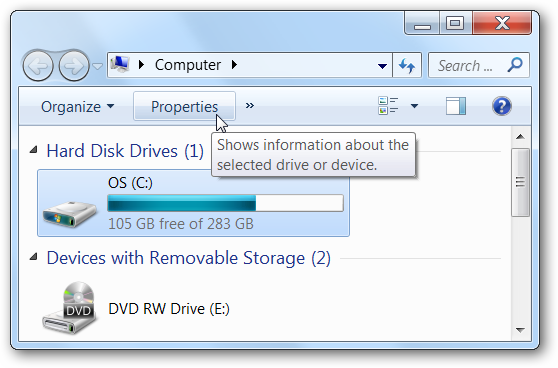
Open up Computer and then right-click on the drive you want to check, and choose Properties, or just click the drive, and then click the Properties button.
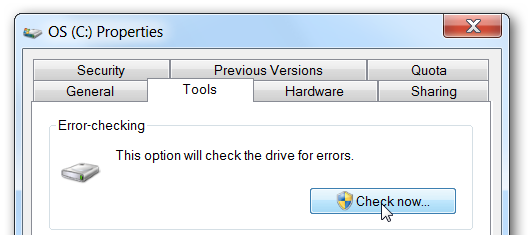
Then select the Tools tab, and click the "Check Now" button.
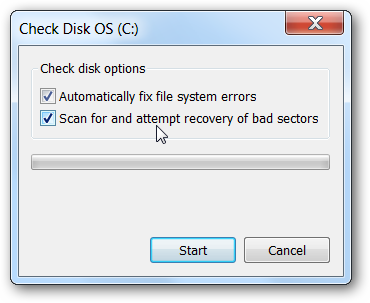
A little dialog will pop up to allow you to choose the options you want for the disk check. You should check both options if you want to really check the disk properly, but if you just want to do a quick check you could select only the first one.
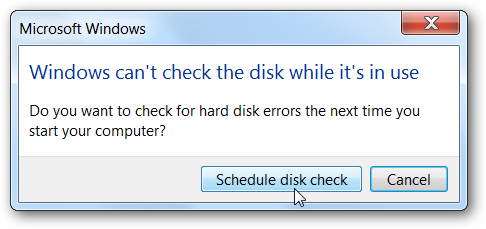
The only problem with that is that Windows can't check a drive that's being used, such as the system drive, but Windows will let you schedule a disk check for the next reboot.
You should keep in mind that running through a full check disk takes quite a while, sometimes hours depending on how big the drive is and how many files you have.
Cancelling the Scheduled Disk Check
If you had scheduled a disk check but decided you would like to cancel it, you can run a command to
Open up an administrator mode command prompt by right-clicking on the item in the start menu and choosing "Run as Administrator". Type in the following command, substituting the drive letter if necessary.
OPTIN II- Kutumia Coomand prompt
Using CheckDisk from the Command Line
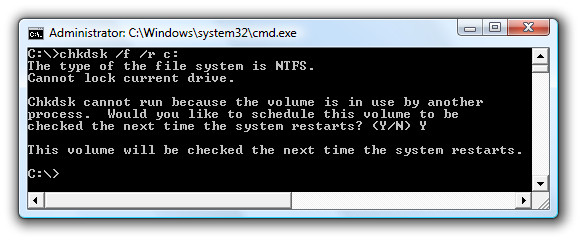
Open up an administrator mode command prompt, and then type in the following command to do an exhaustive check of your drive. Substitute C: for whatever drive you want to check.
chkdsk /f /r C:
If the drive is a system drive or has files in use, you'll be asked to schedule the check for the next reboot:
The above command is the recommended way to perform a disk check, but if you want to do a less exhaustive check, you could remove the /R option from the command.
Here's the full list of parameters for your geeky enjoyment:
C:\>chkdsk /? Checks a disk and displays a status report. CHKDSK [volume[[path]filename]]] [/F] [/V] [/R] [/X] [/I] [/C] [/L[:size]] [/B] volume Specifies the drive letter (followed by a colon), mount point, or volume name. filename FAT/FAT32 only: Specifies the files to check for fragmentation. /F Fixes errors on the disk. /V On FAT/FAT32: Displays the full path and name of every file on the disk. On NTFS: Displays cleanup messages if any. /R Locates bad sectors and recovers readable information (implies /F). /L:size NTFS only: Changes the log file size to the specified number of kilobytes. If size is not specified, displays current size. /X Forces the volume to dismount first if necessary. All opened handles to the volume would then be invalid (implies /F). /I NTFS only: Performs a less vigorous check of index entries. /C NTFS only: Skips checking of cycles within the folder structure. /B NTFS only: Re-evaluates bad clusters on the volume (implies /R) The /I or /C switch reduces the amount of time required to run Chkdsk by skipping certain checks of the volume.
Note: You'll probably notice that this guide was originally written a few years ago. We've updated it for Windows 7 and are republishing it for all the readers that might have missed it the first time.
But nadhani kabl ya kujaribu kutatua tatizo baclup file zako maana kama alivyandika paulls hapo juu it might be a matterof days HHD iwe kaputi.
Uki google utaona kuwa ushauri ni replacement.